
Tiny Scanner - PDF Scanner App
TinyWork AppsBusiness
4.625.29K Reviews
- Version
- 8.16.7
- Installs
- 10.00M
- Age Rating
- Everyone
Screenshots
Our Review of Tiny Scanner - PDF Scanner App
 Analysis by Appyee
I judge a scanning app less by how many buttons it has than by whether it can turn a slightly awkward piece of paper into a file I can actually use. Tiny Scanner - PDF Scanner App is built around that everyday task: capture a document with a phone, tidy up the image, and keep or share the result. In my view, it is most appealing when you need a quick, portable way to handle occasional paperwork, rather than a full office document-management system.
That distinction matters. A phone scan is convenient, but it still depends on decent light, a steady hand, and a little care when framing the page. Tiny Scanner makes those steps approachable, and its editing options give you room to rescue a capture that is not perfect. It does not make every scan effortless, though; a stack of pages or a badly lit form still takes patience.
A practical fit for paperwork away from a desk
I can see this being useful after a meeting when someone hands me a signed page and I need to keep a copy before leaving, or when I want to send a receipt without carrying it around. It also suits students saving notes and people who need to submit a form while travelling. The appeal is simple: the camera already in your pocket can become a useful document tool without requiring a separate scanner.
A realistic workflow is to place a receipt on a plain, contrasting surface, take the picture, check the suggested crop, and correct any edges before saving. If the paper curls or the light casts a strong shadow, I would retake the image rather than expect editing to fix everything. That small habit makes a noticeable difference to legibility, especially if the file will be printed or reviewed later.
What it does well, and where phone scanning has limits
The useful part is not just taking a picture; it is getting from that picture to a document that is easier to read and pass along. Crop adjustments and image treatments can help separate text from a busy background, while PDF output is a sensible format for forms and records. I especially value having a chance to inspect the page before treating it as finished. A quick review catches clipped signatures, missing corners, or a line of text lost near an edge.
Still, a phone camera is not a sheet-fed office scanner. If you need to process a large batch of pages every day, keep strict records, or produce consistent archival scans, a dedicated scanner or a more specialized document workflow is likely a better fit. For a few pages at a time, the trade-off is usually worthwhile: less equipment and setup in exchange for more manual checking.
How it compares with the usual alternatives
Compared with taking an ordinary photo and attaching it to an email, a scanner app gives you a more document-shaped result: you can frame the page, adjust its appearance, and save it as a PDF. That is a real advantage for a signed form or a receipt that someone needs to read. Compared with scanning on a desktop multifunction printer, the phone approach is quicker when you are away from home, but it cannot match the convenience of feeding several pages through a machine.
Your phone may also include a built-in document-scanning option. If that already handles your cropping, PDF saving, and sharing needs, there is no reason to add another app just for the sake of it. I would choose Tiny Scanner when its way of organizing and preparing scans suits my routine; I would stick with the built-in tool for an occasional one-page capture that needs no extra handling.
Small habits that improve the result
For multi-page paperwork, I find it helpful to capture pages in order and check the sequence before sharing the PDF. A missing middle page is easy to overlook when the individual scans look fine. I would also use a consistent naming or labeling habit that makes sense to me, such as a project or document purpose, instead of relying on memory when the folder fills up.
There is another useful trade-off in image adjustments: the strongest black-and-white treatment can make printed text pop, but it may flatten colored annotations, stamps, or faint pencil marks. For a document where those details matter, color or grayscale is the safer starting point. I would compare the preview at readable size before sending, rather than choosing a filter simply because it looks more polished.
Sharing is convenient, but it is worth treating scanned paperwork with the same care as the original. Before sending a page, I check that the right document is attached and that it does not include unrelated personal information in the frame. A clean crop is useful for presentation; it is also a practical way to avoid sharing more of the desk or surrounding paperwork than intended.
As a business app, Tiny Scanner is aimed at a broad audience, and its developer is TinyWork Apps. It is free to install, rated for Everyone, and has an average rating of 4.6 from around 485,000 ratings, with more than 10 million installs. It was released on July 1, 2015, and version 8.11.0 requires Android 7.1 or later. In-app purchases range from $1.99 to $199.99 per item, so I would check what an optional purchase covers before paying; the free starting point makes it possible to judge whether the basic workflow fits first.
Turning Your Phone into a Scanner
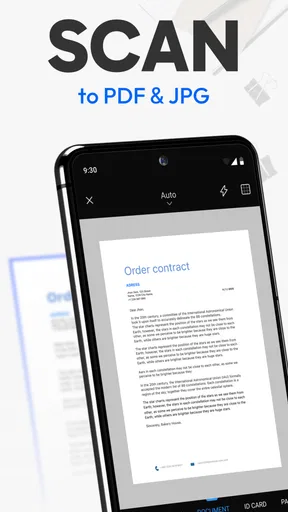
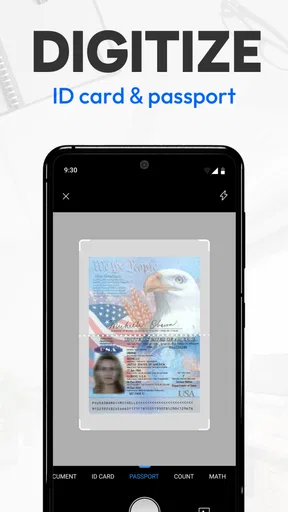
First things first, let's talk about the app's core functionality. With Tiny Scanner, you can scan various documents ranging from receipts to multi-page reports. The app uses your phone's camera to capture high-quality images which are then converted into PDFs. The whole process is surprisingly simple and user-friendly.
Once you've snapped a photo of your document, you can adjust the scan area with ease. The app automatically detects the edges of the document, but you can manually tweak them if needed. This feature is particularly useful when dealing with unconventional document sizes.
Image Quality and Filters
Let's face it—no one wants a blurry or skewed scan. But with Tiny Scanner, that’s rarely a problem. The app provides several filters to enhance your scans, including options for color, grayscale, and black and white. You can also adjust the brightness and contrast to ensure your document is crystal clear.
The quality of the scans is genuinely impressive. Even fine text is captured with clarity, making it perfect for business documents or handwritten notes. It's like having a mini photocopier right in your pocket!
Organizing and Sharing Your Scans
Now, let's talk organization. Tiny Scanner allows you to sort your scans into different folders. You can even add labels to make it easier to find the document you need later on. This feature is a lifesaver if you're scanning multiple documents for different projects or clients.
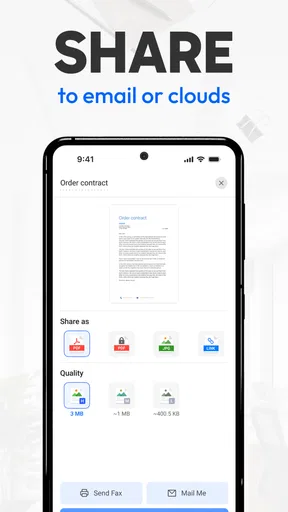
Sharing your scans is a breeze too. The app lets you send PDFs via email or upload them to cloud services like Dropbox, Google Drive, or Evernote. You can even print directly from the app if your phone is connected to a printer. It's all about making your workflow as seamless as possible.
User Experience and Interface
One of the key strengths of Tiny Scanner is its straightforward interface. The app is incredibly easy to navigate, even for tech novices. The main menu is uncluttered, and all the essential features are just a tap away.
What I love about this app is that it doesn't bombard you with ads or unnecessary pop-ups. The developers have clearly focused on creating a clean and efficient user experience. The app runs smoothly, with no lag or crashes during my use.
Why You Should Download Tiny Scanner
So, why should you consider downloading Tiny Scanner? If you're someone who frequently needs to scan and send documents, this app is a game-changer. It's perfect for students, business professionals, or anyone who wants to reduce paper clutter.
The app is available on both Android and iOS, and there's a free version with basic features. For those who need a bit more, there's a premium version that unlocks additional functionalities like batch scanning and unlimited cloud storage options.
In a world where efficiency is key, having an app like Tiny Scanner can save you time, space, and stress. It's a small app with a big impact, and I can't recommend it enough for those who need a reliable scanning solution on the go.
In conclusion, Tiny Scanner offers a practical, efficient, and user-friendly way to manage your document scanning needs. Whether you're scanning receipts, contracts, or even doodles, this app has got you covered. Give it a whirl—you might just wonder how you ever lived without it!
Who should choose it—and who should not
I would recommend Tiny Scanner to someone who deals with paperwork in bursts: a freelancer sending a signed agreement, a student collecting handouts, or a household keeping digital copies of receipts and warranties. Its strongest case is convenience, especially when there is no flatbed scanner nearby and the document is only a few pages long. A phone is already with you, so there is little setup between finding the paper and making a shareable copy.
I would skip it if scanning is a central, high-volume part of a job. For regular stacks, a document feeder saves time and avoids repeatedly positioning every page. I would also choose a purpose-built archival tool for work where exact color reproduction, controlled resolution, or a formal retention process matters. Tiny Scanner is a practical capture tool, not a substitute for every professional scanning workflow.
Keeping a useful record instead of a pile of files
Folders and labels are most useful when I decide on a simple filing convention before I have dozens of scans. For instance, I might group documents by project and label each file with its purpose, rather than creating a new folder for every single page. That makes the organization features work harder without turning filing into a chore. When a document belongs to more than one task, a clear name can be more useful than adding yet another folder.
For a multi-page report, I would scan the pages in a quiet sequence and inspect the finished document as a whole. Checking only each image individually can miss a page that has been left out or placed in the wrong order. If the report contains a form with a signature, I would zoom in on that area before sharing: a page can look tidy at a glance while a small handwritten detail remains hard to read.
Deciding whether the free option is enough
The free starting point makes sense for testing the basic routine: capture a page, adjust it, save it, and send it where it needs to go. I would first try the exact task I expect to do most often, rather than buying an upgrade based on a feature name alone. Optional purchases can be substantial, so it is sensible to confirm that a paid capability addresses a real bottleneck in my own workflow.
One practical question is whether a scan can be handed off in the format and destination I need. PDF is a familiar choice for paperwork, and the described sharing routes cover common situations such as emailing a copy or sending it to a cloud service. If a workplace requires a specialized naming system, document portal, or strict file-handling process, I would check that routine separately before making this my default tool.
A measured recommendation
The app’s appeal is its balance of camera capture, page adjustments, PDF handling, and straightforward organization. Those pieces are more useful together than a bare photo, especially when I need to keep a record and send it promptly. Its limits are equally clear: lighting and framing still matter, lengthy batches take hands-on effort, and the best filter depends on what the page contains.
For occasional documents, I think Tiny Scanner is a sensible choice to keep available, particularly for people who want a more deliberate result than a quick camera photo. If your built-in scanner already gets you there, staying with it is perfectly reasonable. If you routinely process many pages or need tightly controlled archival results, use dedicated equipment instead. For everyone in between, I would try the free workflow on an ordinary receipt or form first and judge it by whether the finished PDF is clear, correctly ordered, and easy to send.
Verdict
Strengths of Tiny Scanner - PDF Scanner App
- Fast and efficient scanning process.
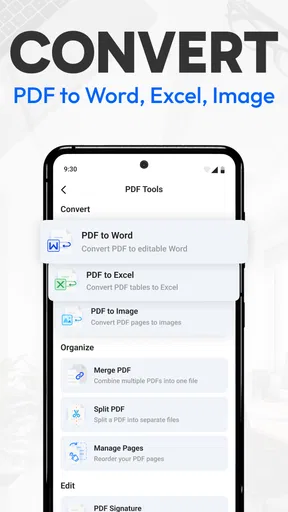
- Supports multiple file formats.
- Easy organization with folders.
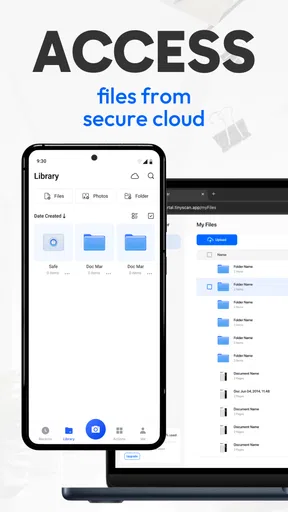
- Syncs with cloud storage seamlessly.
- User-friendly interface.
Limitations of Tiny Scanner - PDF Scanner App
- Limited free version features.
- Occasional ads in free version.
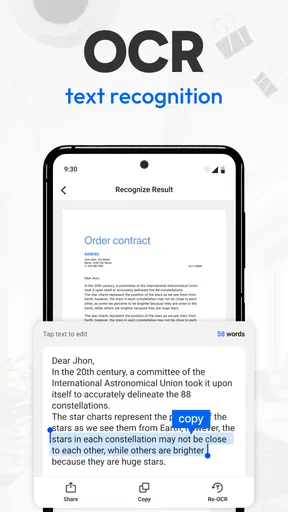
- No OCR in basic version.
- Requires in-app purchases for extras.
- No batch scanning on free tier.
Other Releases by TinyWork Apps
View All
Tiny Fax - Send Fax from Phone
Business4.6

Checkbook - Account Tracker
Finance3.6

Invoice Maker - Tiny Invoice
Business4.4
Similar Picks in This Category
View All
LinkedIn: Community & Network
LinkedIn3.8

Zoom Workplace
zoom.com4.1

Microsoft Teams
Microsoft Corporation4.6

Meta Business Suite
Meta Platforms, Inc.4.6

Webex Meetings
Cisco Systems, Inc.4.5

TeamViewer Remote Control
TeamViewer4.4
Frequently Asked Questions
What is Tiny Scanner - PDF Scanner App?
Tiny Scanner is a mobile application that transforms your Android or iOS device into a portable document scanner. It allows you to scan documents, receipts, photos, and reports, converting them into high-quality PDFs. The app is user-friendly and designed to streamline document management, making it a popular choice for both personal and professional use.
How does Tiny Scanner ensure the quality of scanned documents?
Tiny Scanner uses advanced image processing technology to enhance the clarity and readability of scanned documents. It offers multiple filter options to adjust the image quality, and you can also crop and edit the scans before saving them. The app ensures that all documents are rendered in high resolution, suitable for printing or sharing.
Is Tiny Scanner secure for handling sensitive documents?
Tiny Scanner prioritizes user privacy and security. It does not store your documents on external servers. All files are saved locally on your device unless you choose to upload them to a cloud service. The app also offers password protection for PDFs, ensuring that sensitive information remains secure and accessible only to authorized users.
Can I share scanned documents using Tiny Scanner?
Yes, Tiny Scanner provides multiple sharing options. You can easily email scanned documents directly from the app, or upload them to popular cloud services like Google Drive, Dropbox, and OneDrive. Additionally, you can print documents using AirPrint or share them via other installed apps, making it convenient to disseminate information quickly.
Does Tiny Scanner offer any editing features for scanned files?
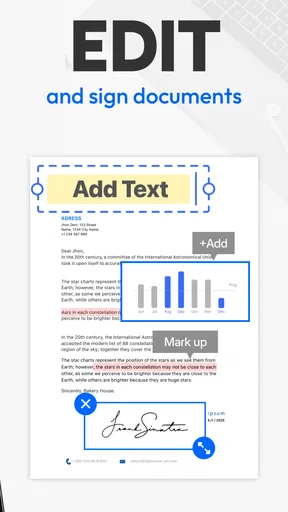
Tiny Scanner includes basic editing features that allow you to adjust the scanned document's aspect ratio, brightness, and contrast. You can also reorder pages within a document and add annotations if needed. While it doesn't provide advanced editing tools, these features are sufficient for most everyday scanning needs.
